

ORICO 95 Series 5 Bay 3.5'' USB3.0 HDD Docking Station Support RAID Mode Aluminum With 150W Power for Bitcoin Altcoins Mining
DARAHUB Store
SPECIFICATIONS
2 Bay Capacity: 32 TB
4 Bay Capacity: 64 TB
5 Bay Capacity: 80 TB
Brand Name: Orico
Case Material: aluminum
Color: Black
External Interface: USB
Function: Tool free/Hot-swap/Intelligent sleep
High-concerned chemical: None
Interface: USB3.0 sata 3.0
Item: 5-bay HDD ENCLOSURE
Material: Aluminum
Model Number: 9558RU3
Origin: Mainland China
Package: Yes
Plug Type: EU Plug,US Plug,AU Plug,UK Plug
Size: 2.5",3.5"
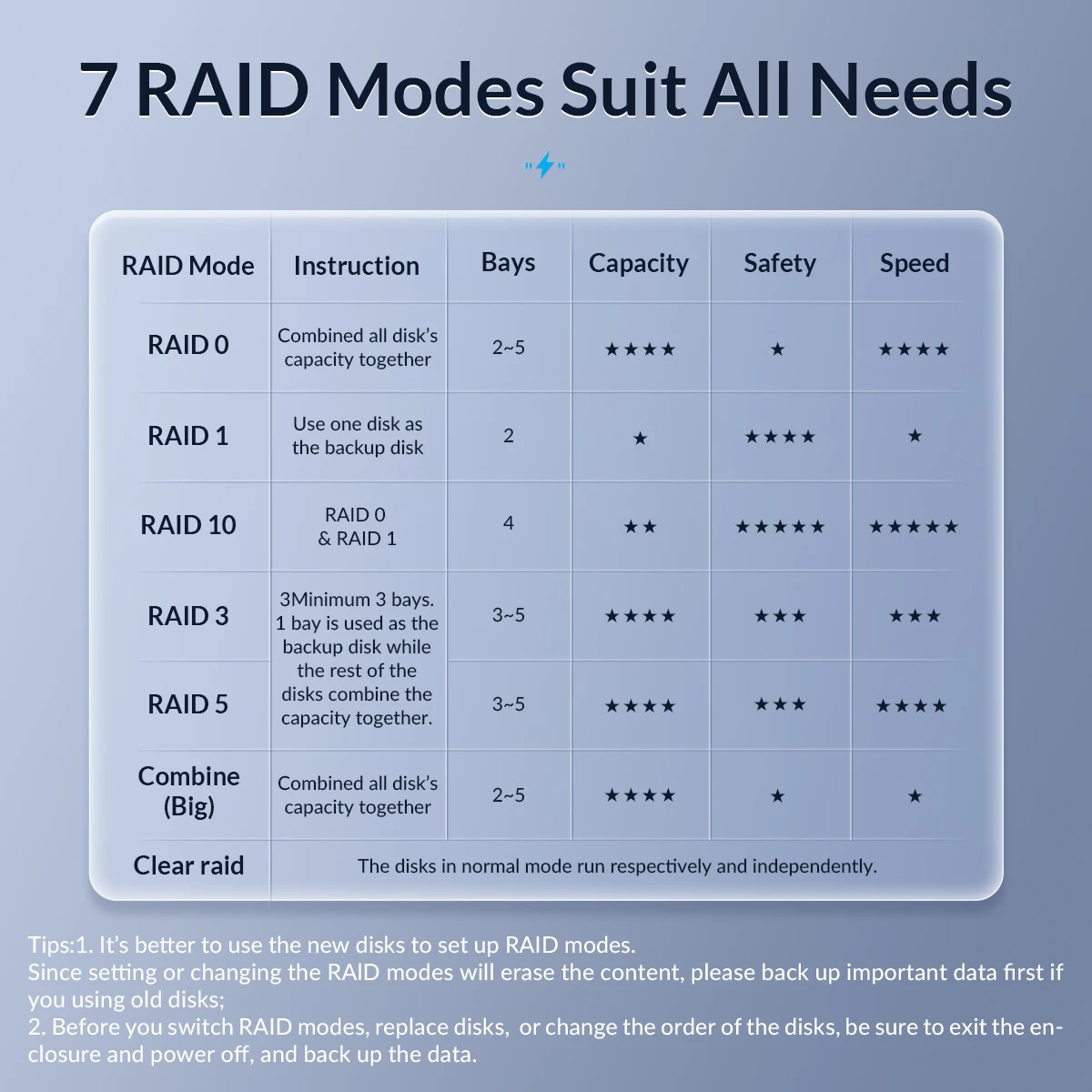
Support Raid: Normal/large/RAID 0/1/3/5/10
Supporting Hard Drive Capacity: 80TB(5*16TB)
function 1: hdd raid enclosure
function 2: HDD Docking Station
function 3: Tool free hdd enclosure
function 4: raid hdd case
Notice:This link is USB3.0 with RAID hdd docking station


Super Speed USB3.0 Transfer Speed up to 5Gbps
This 5 bay hard drive enclosure supports all 3.5" SATA (I / II / III) hard disks, USB3.0 to SATA3.0 dual high-speed transmission,speed up to 5Gb/s, backward compatible with USB 2.0 / 1.1, Activity LED indicator disk access status.

5 Bay Raid Enclosure with 110TB Large Capacity
5 Bay External Hard Drive Storage Enclosure, Support RAID 0/1/3/5/10/jbod/Single Exclusive RAID Mode which can meets different work requirements. and Compatible 3.5 inch SATA HDD hard drive, Supports up to 5 x 18TB hard drive, Total capacity up to 110TB.


Unibody Aluminum-Alloy Body & Double Heat Dissipation
The 5 Bay Raid Enclosure Features an Unibody Aluminum-Alloy Shell and Fan, good in heat dissipation, up to 4mm thickness which is firm and reliable, The Forced Convection Process helps speed up the air circulation and heat ventilation to effectively cool the drive and whole system for stable operation and an extended lifespan.


Dual-Core Chip & 150W Internal Power Supply
NOTE:
9548RU3:150W or 72W Internal Power Adaper Random.
Built-in SATA3.0 Dual-Core chip, and Upgrade the 150W power supply to support larger capacity hard drives, provide sufficient power to ensure the Data storage and Transferring's Safety and Stability, Independent safety lock for each drive, Protect your hard drive with care.

2 Methods to Set RAID Mode
Manual Method or Software Manager Method


Tips
When using the array lever on the back of the dual-bay array model to perform group array operations, the device will not emit a beep. This does not affect normal use of the product and setup of the array. Be sure to double-check the lever settings to confirm that the array is configured correctly.
Auto-Sleep Function
Automatic enter sleep mode after 10 minutes without operation, Power-saving, effectively reduce hard drive wastage, prolong it's service life, and the activity LED indicator disk access status.

PLUG and PLAY, HOT SWAP
Tool Free design mounts drives without tools and screws in seconds, hot-swapping supported, plug and play. The external hard drive enclosure compatible with Windows XP/ VISTA/ Windows 7/ 8 /8.1/ 10/ Linux/ Mac 9.1/10.2 or higher.


Tips : Offline Clone Instructions
1.Insert the disks in.Disconnecting the docking station with the computer. Turo off the power and insert disk A into the Source Slot and disk B into the Target Slot.
2.Connect the power.Switch the button at the back of the docking station to Clone and turn the power on.
3.Clone start.Press the Start button at the back and the indicator light flashes when cloning. The indicator light is constantly on after the clone is finished.
Notes:
1.The target drive must be equal to or larger in capacity than the source drive.
2.Please do not move the disk during processing, and do not connect the dock with the computer.
Q&A:
Q: Why I can’t find the hard disk on the computer?
A: Please format the brand-new hard disk after connecting to the computer.Procedures: Right-click 'computer’- click ‘Management’- ’Disk Management’- select the new hard disk – right-click ‘Initialization’- Select ‘MBR’(If the capacity is smaller than or equal to 2TB ) or ‘GPT’(If the capacity is larger than 2TB ) - select ‘New Simple Volume’- click ‘Format"
Q: What to do when disk management shows that the hard disk is in raw format after an inappropriate operation or sudden power-off?
A: Solution: Run cmd and enter CHKDSKi(‘I’ means the drive letter): /F and Enter. After scanning and repairing, it will display after restarting the PC.
Q: The computer shows ‘dynamic disk invalid’ in the disk management after the disk was removed from the old computer.
A: Please connect the disk to the old computer, back up the data, and format it. If your computer is not working anymore, you can download a dynamic disk converter to transfer it into a basic disk.
Q: What to do when you find the hard disk shown in the computer without the drive letter marked?
A: Click ‘Disk Management’- ‘Disk Partition’- change the disk path and name – type the disk name in.
Q: Why did the enclosure lose the connection with the computer during the transmission on and off?
A: It may be caused by the malfunctioning USB cable, outdated the driver, or a broken disk. Please contact the customer service center for technical support.


